


PDF Reader: View All PDFs
3.4241.00 Reviews
App Specs
- Version
- 1.2.4
- Updated On
- License
- Free
- Downloads
- 10,000,000+
- Developer
- Lumio Tech
- Categories
- Tools
- Platform
- Android
Screenshots
 Analysis by AppCompare
For a PDF app, the real test is what happens when a document arrives at an inconvenient moment: a form to check while you are away from a desk, a handout to skim before class, or a bill you need to keep track of. I find PDF Reader: View All PDFs most appealing as an all-in-one phone tool for those ordinary tasks, rather than as a replacement for a full desktop publishing setup. Its promise is convenience, but the useful question is whether its mix of reading, editing, and file handling suits the way you actually work.
What the app is trying to do
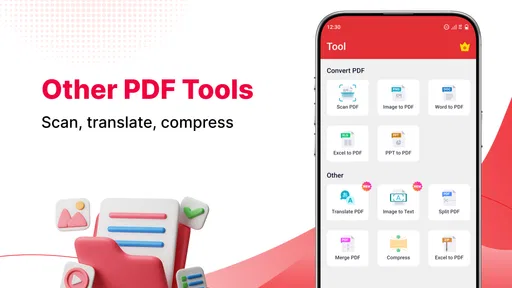
This is a free PDF reader in the tools category from Lumio Tech. Its stated focus goes beyond opening documents: it is intended to help you view, edit, and convert PDFs on a phone. That combination makes sense if you regularly receive files through messages or email and want to do more than simply read them before passing them along.
The app is currently at version 1.1.8, following its release on November 12, 2025. That gives a useful point of reference for judging its current state, but a version number alone does not tell me which functions have changed or how the app has evolved. I would treat the present release as the version to evaluate, not assume that it has already gained features that are only possible future improvements.
There is a visible audience for it: it has more than a million installs, an average rating of 3.3 from around 6,800 ratings, and 135 written reviews. I read that combination as a reason to try it with a low-stakes document before making it central to an important workflow. The rating is mixed rather than a clear endorsement, so your own experience with the interface and the particular files you use matters more than the install count.
Where a phone-based reader can earn its place
A practical use is reviewing a document while commuting or waiting for an appointment. You can open a PDF, move through its pages, and use the editing and conversion functions when a quick change is enough. For a student, that could mean checking a reading assignment and marking a passage; for someone handling household paperwork, it might mean looking over a statement and keeping the relevant file together with other documents.
The best fit is someone who values having several PDF tasks in one mobile app and does not want to switch between a reader, a markup tool, and another utility for every small job. If your needs are mainly to open a file and read it, a simpler built-in viewer may already be enough. If you regularly create complex documents, make layout-sensitive edits, or need a carefully controlled professional review process, a desktop PDF editor is usually the more sensible choice.
Costs, age suitability, and a sensible first test
The app is free to download and is rated for Everyone. In-app purchases are listed from $9.99 to $49.99 per item, so it is worth checking what is included before paying for anything. I would first try the tasks you care about with a copy of a non-sensitive PDF: open it, test the relevant editing or conversion workflow, and check the result in another viewer before relying on it.
Worth Reading Before You Choose

Flipboard Shows What News Apps Must Do Beyond the Feed

Switching to Android Auto Means Rethinking Your Driving Routine

Google Calendar Makes a Crowded Week Easier to Manage

Ludo King Makes the Most of the Minutes Between Plans

Baby Panda World Brings Quick Play to Modern Phones, but Its Game Library Feels Busy

ESPN’s Live Game View Makes Following Close Games Easier
That small test answers several practical questions at once. Does the document open as expected? Is the change you made preserved when you reopen the file? Does the converted version still look right? Those checks are especially useful with forms, tables, or files that matter, because a document can appear fine on a phone while still needing a closer review before it is shared or submitted.
First Impressions and Setup
So, the first thing I noticed when I opened PDF Reader: View All PDFs was how clean and simple the interface is. It’s like the app designers knew exactly what we needed without throwing in a bunch of bells and whistles. Installing it was a breeze—just a quick download from the app store, and I was good to go.
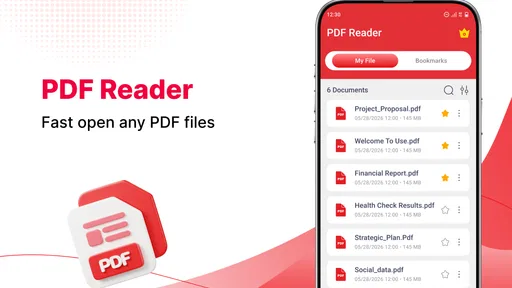
Once you open the app, you’re greeted with a neat dashboard that shows all your recent documents. The setup is intuitive, so even if you’re not the most tech-savvy person, you can navigate through it with ease. I especially loved how it automatically organizes my files into categories, making them super easy to find.
Viewing and Navigating PDFs
Let’s talk about the meat and potatoes of this app: viewing PDFs. The app supports all major PDF formats and renders them with impressive clarity. I was able to zoom in and out smoothly, and the text was sharp even at the highest zoom levels. No more squinting at tiny text!
What's cool is that you can jump to specific pages with a simple swipe or by entering the page number. If you’re like me and often deal with massive documents, this feature will definitely come in handy. It even remembers where you left off, so you can pick up right where you stopped last time.
Annotation and Editing Features
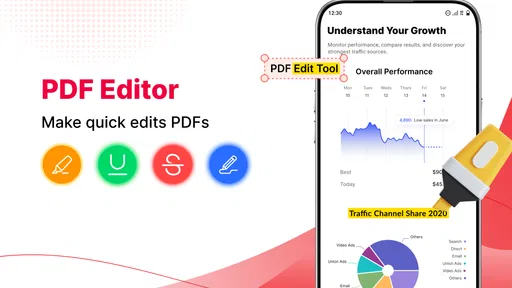
Here’s where the app really shines. It offers a variety of annotation tools, including highlighting, underlining, and even freehand drawing. I found myself using the sticky note feature a lot to jot down quick thoughts directly on the document. It’s pretty much like having a digital notepad.
Editing PDFs is often a hassle, but this app makes it pretty straightforward. You can add or remove text, and even insert images if needed. The changes are saved instantly, and you can easily share the updated documents via email or other apps.
Organizing and Sharing Documents
Managing documents can get chaotic, but not with this app. It allows you to create folders and subfolders, making it easy to keep everything organized. You can also tag your documents for even quicker access, which is a feature I didn’t know I needed until I started using it.
Sharing documents is a breeze, too. Just tap the share icon, and you can send your files via email, messaging apps, or even upload them to cloud storage services like Google Drive or Dropbox. This makes collaborating with colleagues or sharing important documents with friends a piece of cake.
Security Features
In today’s world, keeping your documents secure is a top priority. The app offers password protection for sensitive files, so you can rest easy knowing your important documents are safe from prying eyes. It’s like having a lockbox for your digital files.
Overall, the security features are robust without being complicated. You can set up passwords with just a few taps, and the app will prompt you for them every time you try to access a protected file.
Making everyday document work less fiddly
A useful way to put the app through its paces is to treat a document as a small workflow rather than a single action. Imagine a school sends a permission form as a PDF while you are out. You can open it to check the details, mark the part you need to ask about, and keep the file in a dedicated folder so it does not disappear among downloads. If you make a change, reopen the saved copy before sending it on. That final check is a good habit with any mobile editor, especially when another person will rely on the result.
For longer reading, the page-jump and resume behavior described above can save more time than a flashy feature. I would use page numbers when returning to a specific section of a long guide, then use a short annotation to flag the passage I need later. This is more dependable than trying to remember where an important detail appeared. For a document you revisit often, a simple folder structure can do more for retrieval than creating an elaborate filing system you will not maintain.
There is also a practical trade-off between editing on a phone and editing on a larger screen. A phone is convenient for a quick correction or note, but it is harder to judge spacing and the overall appearance of a page on a small display. I would use this app for lightweight changes and review, then check any document where alignment, image placement, or presentation matters on a tablet or computer before sharing it as a finished file.
How it fits beside other PDF options
Compared with a phone’s built-in PDF viewer, this app aims to cover more of the document lifecycle. A basic viewer is often the quickest option when all you need is to open a file, and it may be preferable if you want to avoid installing another tool. The appeal here is having annotation, editing, conversion, and organization in one place, provided those tools match your needs and work smoothly with your documents.
Dedicated PDF editors can be a better fit for people who handle contracts, forms, or polished reports all day. Their larger-screen workflows may make detailed changes easier to inspect, while a focused reading app can be less distracting if editing is not part of your routine. I see this app in the middle: more ambitious than a read-only viewer, but best approached as a convenient mobile helper rather than assumed to be a complete substitute for every desktop document task.
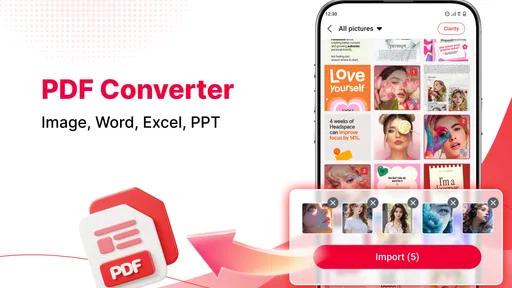
Conversion deserves a little care in particular. Before converting an important file, keep the original unchanged and compare the output page by page, especially if it contains tables, special formatting, or images. The same caution applies when removing or adding text: a quick edit can solve a small problem, but it is sensible to verify that nearby content has not shifted or become harder to read.
Keeping files easy to find and safe to share
Folders and tags are most useful when you decide on a light system before your document collection grows. I would separate recurring areas such as study, work, and household paperwork, then use tags only for details that cut across those folders. That avoids turning every file into a classification project. It also makes the recent-documents view more helpful: recent files are convenient for active work, while folders are better for finding something after several days have passed.
When sharing, take a moment to confirm that you are sending the edited copy rather than the original. This is an easy detail to overlook when a file has been opened from a message and then saved elsewhere. If the document contains personal information, password protection can add a useful barrier, but it should not replace careful recipient checks or sensible handling of the file itself.
One question worth asking before adopting any reader is whether it fits the operating system and device you plan to use. The minimum OS requirement is Android 8.0, so an older Android device should be checked against that before installation. The app is free to start with, but purchases are available, which makes it sensible to confirm that the specific tools you need are accessible on your intended terms before building a routine around them.
What I would watch as it develops
Because the current version is 1.1.8 and the release was on November 12, 2025, the clearest thing to watch is how the app’s actual day-to-day behavior holds up for your documents, not what a version label might imply. I would pay attention to whether reading, saving, and sharing remain straightforward across the kinds of PDFs you use, and whether the tools you rely on are worth any optional purchase. Those are practical measures of progress for a document utility.
The moderate average rating makes it especially reasonable to test your own workflow instead of relying on broad praise or criticism. Try one short file, one longer document, and one copy you can safely edit. If all three behave as you expect, the app may earn a place in your regular toolkit. If your main task is simply opening a PDF, or if precise editing is essential, a simpler viewer or a more specialized editor may leave you better served.
Final Thoughts
All in all, PDF Reader: View All PDFs is a fantastic app for anyone looking to manage their digital documents efficiently. It’s user-friendly, packed with useful features, and doesn’t bog you down with unnecessary fluff. Whether you’re a student, a professional, or just someone who likes to stay organized, this app is definitely worth checking out.
If you’re tired of clunky PDF readers that make document management a chore, give this app a try. It's like having a personal assistant right on your phone, ready to handle all your PDF needs. Trust me, once you start using it, you’ll wonder how you ever lived without it.
Pros
- User-friendly interface for easy navigation.
- Supports various file formats beyond PDFs.
- Fast and efficient document loading.
- Annotation tools are intuitive and robust.
- Offline access to files is seamless.
Cons
- Ads can be intrusive during use.
- Limited features in the free version.
- Occasional lag when loading large PDFs.
- Some advanced tools require in-app purchases.
- Compatibility issues on older devices.
FAQs for PDF Reader: View All PDFs
What features does PDF Reader: View All PDFs offer?
PDF Reader: View All PDFs provides a comprehensive suite of tools for managing PDF documents. Users can view, annotate, and highlight text with ease. The app also supports various file formats and offers cloud storage integration, making document management seamless across devices. Its user-friendly interface ensures quick navigation and efficient workflow.
Is PDF Reader: View All PDFs compatible with both Android and iOS devices?
Yes, PDF Reader: View All PDFs is designed to work seamlessly on both Android and iOS platforms. The app is optimized to provide a consistent experience across different devices, ensuring that users can access and manage their PDF documents with ease, whether on a smartphone or tablet.
Does the app require an internet connection to function?
PDF Reader: View All PDFs primarily operates offline, allowing users to view and edit documents without an internet connection. However, features like cloud storage integration and online document sharing require connectivity. This flexibility makes the app versatile for both offline use and online collaboration.
What are the pros and cons of using PDF Reader: View All PDFs?
Pros include an intuitive interface, robust annotation tools, and cross-platform compatibility. The app also supports various file formats and cloud integration. However, some users might find the advanced features locked behind a paywall, and occasional ads in the free version can be disruptive. Overall, it's a strong choice for PDF management.
How secure is my data when using PDF Reader: View All PDFs?
Security is a priority for PDF Reader: View All PDFs. The app employs encryption protocols to protect user data, both locally and during cloud transfers. It’s important to ensure you download the app from reputable sources, like Google Play or the App Store, to avoid compromised versions that could affect security.


